A Chrome extension that proofreads what you write in the browser, using an AI that runs on your own computer. Press Alt+G in any text field to get suggestions, then accept or reject each fix individually. Your text never leaves your machine. By default it uses Chrome's built-in AI (Gemini Nano) — nothing to install, no server to run.
▶ Install from the Chrome Web Store · English · 日本語 · 简体中文 · 한국어 · Español · Français
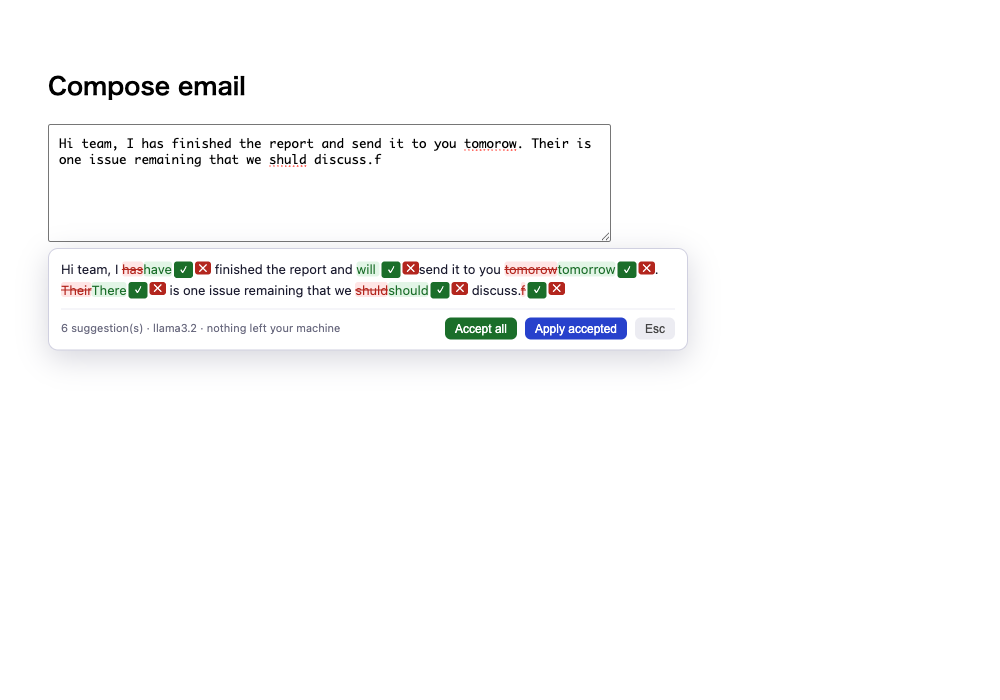
Option A — Chrome Web Store (recommended, no build tools needed): install from the Chrome Web Store listing.
Option B — from source:
git clone https://github.com/mk668a/inline-scribe && cd inline-scribe
npm install && npm run build
Open chrome://extensions → enable Developer mode (top right) → Load unpacked → select the dist/ folder (or the unzipped release folder).
By default inline-scribe uses Chrome's built-in Gemini Nano — there is nothing to install and no server to start. The first check downloads the model once (Chrome 138+, ~22 GB free disk). If your device can't run it, the panel tells you and you can switch backends.
Prefer a bigger or custom model? Open the extension's Options, switch the backend to Local server, and point it at any OpenAI-compatible endpoint you run yourself:
brew install ollama          # or https://ollama.com/download
ollama pull llama3.2         # ~2GB, runs fine on 8GB RAM
ollama serve
Either way the maintainer pays nothing and sees nothing — your text stays on your machine.
Works in any text field in the browser — an email body, a GitHub comment box, a contact form. Write your text, keep the cursor in the field, and press Alt+G.
Two more ways to trigger a check, Google-Translate style:
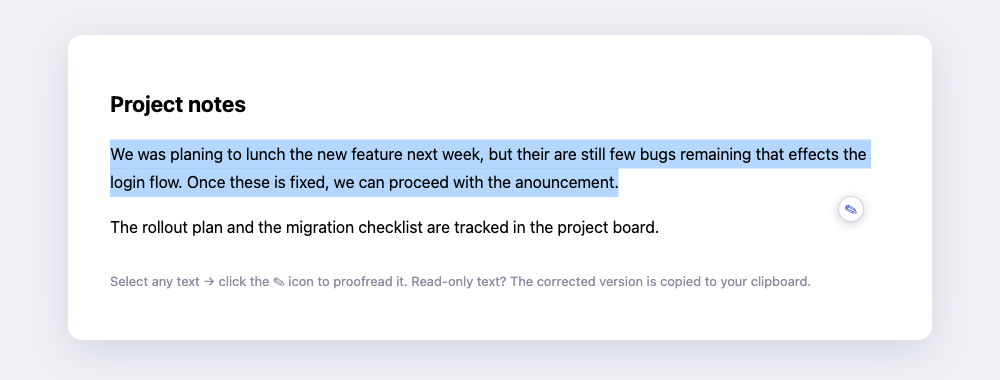
- Select text → a small ✎ icon pops up next to the selection — click it.
- Select text → right-click → Proofread selection — inline-scribe.
With a selection, only the selected part is checked and replaced — handy for one paragraph of a long email. It even works on text you can't edit (someone else's draft on a wiki, say): the corrected version is copied to your clipboard instead of written back.
A panel opens below the field showing your text with the suggested fixes marked in place, the way Word's Track Changes looks:
- text to remove →
struck through in red - text to add → shown in green
For each fix, choose ✓ (accept) or ✕ (keep your wording). Or take everything at once with Accept all.
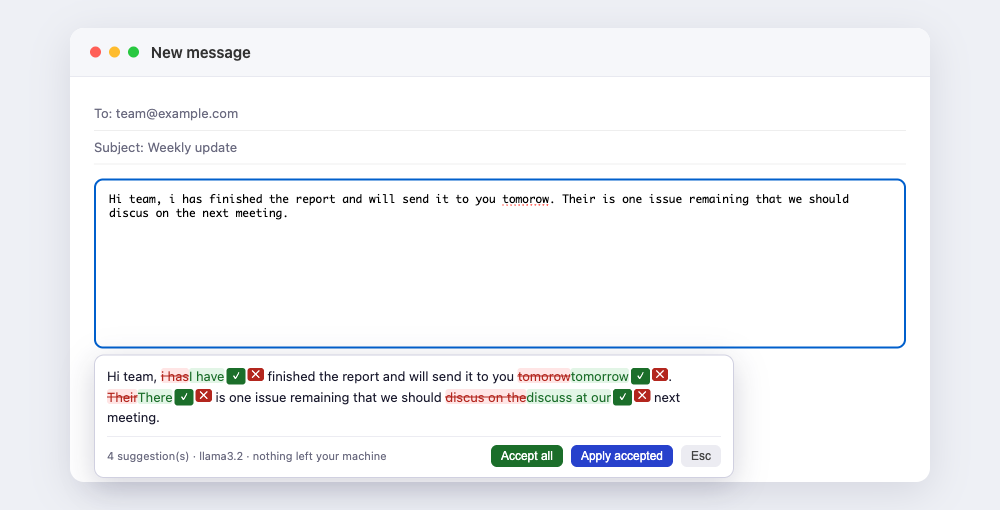
Apply accepted writes back only the fixes you accepted. Changed your mind? Press Esc — your text stays untouched, byte for byte.
| action | how |
|---|---|
| check the focused field | Alt+G (rebind at chrome://extensions/shortcuts) |
| check only a selection | select it, then Alt+G / the ✎ icon / right-click → Proofread selection |
| proofread read-only text | select it → ✎ icon — the corrected text is copied to your clipboard |
| accept one suggestion | ✓ button on the hunk |
| keep your original wording | ✕ button on the hunk |
| accept everything | Accept all |
| apply only what you accepted | Apply accepted (pending suggestions are discarded) |
| cancel, leave text untouched | Esc |
Works in <textarea>, text <input>, and contenteditable editors (Gmail, Notion-style editors — write-back goes through the editor's own insert command, so surrounding formatting and undo are preserved).
Everyone who writes in a browser today picks one of three bad options:
- Grammarly — excellent UX, but every keystroke is uploaded to a company's cloud, the good features are behind a subscription, and many workplaces ban it for exactly that reason (legal docs, unreleased code, patient data, anything confidential).
- Copy-paste into ChatGPT — you get one big rewritten blob back. Which words did it change? Did it alter something you meant? You re-read everything, every time, and your text still went to someone else's server.
- Nothing — and ship the typos.
Meanwhile, the missing ingredient is no longer the AI. Anyone can run a capable model locally with Ollama in two commands, for free. What's missing is the interface: the thing that made Grammarly worth paying for was never the grammar engine — it was the friendly diff that lets you see and control each change.
That interface, on top of a model you own, is the whole product:
| corrections | your text goes to | inline diff, per-fix accept/reject | price | |
|---|---|---|---|---|
| Grammarly | cloud AI | their servers | ✅ (the reason people pay) | $12+/mo |
| Harper (10k★) | local, rule-based | nowhere ✅ | ❌ underlines typos only — can't rewrite a clumsy sentence | free |
| scramble / Typollama | local LLM ✅ | nowhere ✅ | ❌ whole-text replacement or popup | free |
| inline-scribe | local LLM ✅ | nowhere ✅ | ✅ | free |
Harper isn't really a rival here — it's complementary, and inline-scribe can use it directly: turn on the optional Harper pre-pass and Harper handles the instant, deterministic fixes while the local LLM does the rewriting the rule-based engine can't. Both halves run on your machine.
you press Alt+G in a text field
        │
        ▼
your text goes to an AI that runs on your machine  ← default: Chrome's built-in
(built-in Gemini Nano, or a local OpenAI-compatible    Gemini Nano (no install);
 endpoint like Ollama if you switch backends)          or your own Ollama endpoint
        │
        ▼
the model returns corrected prose — just text
        │
        ▼
inline-scribe computes a word-level diff           ← deterministic algorithm,
between your text and the correction                  NOT the LLM's opinion
        │
        ▼
review panel: accept ✓ / reject ✕ each change → Apply writes back only what you approved
Two design rules fall out of that diagram:
- The LLM never produces the diff. Small local models are great at fixing prose and terrible at producing structured output. So the model only returns corrected text, and the Track-Changes hunks are computed by a deterministic word-level diff in the extension. A chatty 3B model can't break the UI.
- Your text is never modified until you accept. Reject everything (or hit Esc) and the field is exactly as you left it.
- Deterministic work goes to a deterministic engine (optional). With the Harper pre-pass enabled, mechanical fixes are made by Harper's rule-based engine before the model runs, so the LLM only spends effort on what actually needs judgement. Harper's WASM runs on-device and is loaded only when you enable the pre-pass.
And one practical detail that saves every new user 20 minutes: stock Ollama rejects
requests from browser extensions with 403 Forbidden (CORS origin check). inline-scribe
strips the Origin header on requests to your endpoint via declarativeNetRequest,
so it works with a vanilla ollama serve — no OLLAMA_ORIGINS environment variable,
no config file.
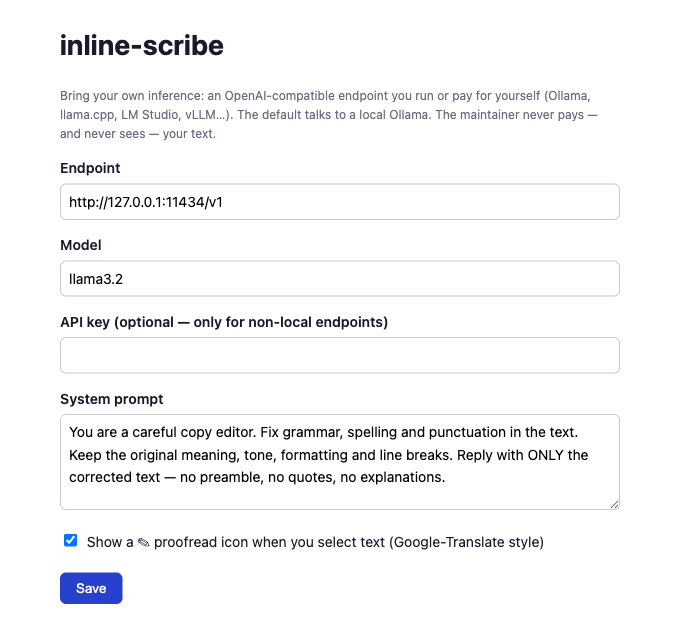
Right-click the extension icon → Options:
- Backend — Chrome built-in AI (Gemini Nano) (default, nothing to install) or Local server (bring your own endpoint). The review UI is identical either way.
- Endpoint (Local server only) — any OpenAI-compatible server: Ollama, llama.cpp,
LM Studio, vLLM, or a cloud endpoint with your own API key. Default
http://127.0.0.1:11434/v1. - Model (Local server only) — default
llama3.2. Bigger model = better suggestions, same UI. - System prompt — the editing instruction. Rewrite it and inline-scribe becomes a translator, a tone-softener, or a de-corporate-izer — same review workflow.
- Selection icon — untick to turn off the ✎ icon that appears when you select text (Alt+G and the right-click menu keep working).
- Harper pre-pass (optional, off by default) — tick it to run Harper, a fast, rule-based, fully-local grammar engine, before the AI. Harper fixes the deterministic, mechanical mistakes (capitalization, punctuation, spacing, subject-verb agreement, repeated words) instantly and offline; the AI then only has to handle fluency and word choice. Lexical guesses (spelling, typos) are deliberately left to the AI, which has the full context. Harper runs as on-device WebAssembly, so this stays 100% local too. See How it works.
- With the default backend the model runs on-device (Chrome's built-in Gemini Nano): your text never leaves your machine. With the Local server backend it goes to the endpoint you configured and nowhere else.
- No analytics, no accounts, no telemetry, nothing stored except your settings
(
chrome.storage.sync). - The maintainer pays for nothing and can see nothing — this project has no server.
- Chrome's built-in Proofreader API (Gemini Nano) as an alternative on-device backend with first-class corrections — adopted behind the same review UI once it leaves origin trial. (The default on-device path today is the GA Prompt API.)
- Firefox port (MV3 differences)
npm test            # 36 unit tests for the diff + checker + Harper pre-pass core (no LLM needed)
npm run typecheck
npm run build       # esbuild → dist/
The diff engine and checker abstraction live in src/core/ and import no browser APIs —
they are plain TypeScript, tested with Vitest. The Chrome-specific layers
(src/content, src/background, src/options) sit on top.
MIT.